Showing posts with label Keywords. Show all posts

August 2, 2011

Bridge Italicized Keywords

Why are my keywords in Bridge italic? Why do my keywords disappear from Bridge? Aaah, keywords can be frustrating, but they don't need to be.

In Bridge some keywords are temporary, appearing when you view an image that is tagged with that keyword and disappearing when you restart Bridge. These are keywords that were added by other users. If you do not have the same keywords saved to Bridge, then they will appear in italic, indicating that they are temporary.

Ok, here's an example.
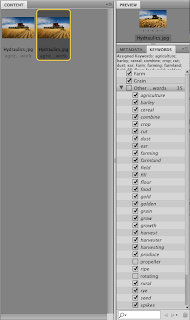
In Bridge I have selected a photo of some farming equipment (I believe it is a combine).
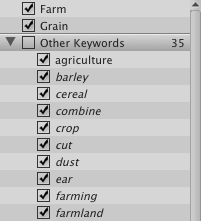
Notice in my keywords pallet there are many keywords that are checked. The two words at the top. "Farm" and "Grain" are in normal type. The keywords under the category "Other Keywords" are italic. The italicized words are not part of the permanent keyword collection. They appear when you select an image that has been tagged with those keywords. They will remain (in italic) in my keywords panel until you close bridge.

If you want the keywords to display all the time in Bridge, then you must make them permanent. Here's how.

1) Right click the keyword. (It does not have to have a checkmark in front of it). Choose "Make Persistent"
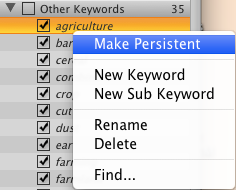
2) Now the keyword "Agriculture" is not italic. This means that if we close Bridge and reopen it, the keyword will still be there.
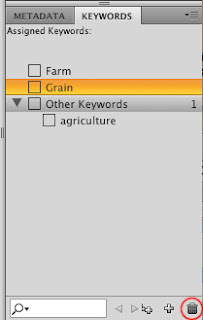
3) Close Bridge and reopen. Notice that "Agriculture" is still on the list, and all the other italic words are no longer there. That's because we made it persistent and it now permanently in our Bridge collection.


To remove a keyword, just select the keyword and then click on the trashcan icon in the bottom right-hand corner. The keyword will be removed from Bridge. If you then select an image that had previously been tagged with this keyword, it will appear in italic.

June 21, 2011

Importing a Library in Bridge

How do I import keywords into Bridge?
Importing keywords is very easy and it is beneficial in a group setting, like my office for example. We want everyone tagging images to have access to the same set of keywords. This reduces the number of mistakes due to hand-keying in terms. The library can be created and imported by following these easy steps listed below. They can also be found on Adobe's site here (scroll down a bit) or on This Site (better step-by-step instructions).

1) In a text editor such as Word or Pages, create a plain text document. This file type will have the ending .txt.
OR
You can also create a system of keywords in in Excel.
2) Add your keywords, with these restrictions:
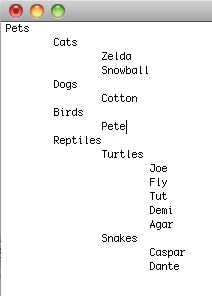
• Place one keyword per line
• Create sub categories by indenting keywords
You can put your keywords in any order, but Bridge will automatically alphabetize them.
In my example I have a list of pets. Notice the order they are in.

3) In Bridge, go to your keywords panel and click on the small drop-down arrow in the top right-hand corner. Click on Import.

4) Find the document on your machine and then click "Open".

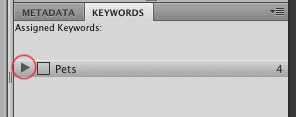
5) The keywords are now added to your list. In my pet example, I had "Pets" as the main category. You will see that's the only item in my new keyword list. I need to click the little arrow beside it to see the sub categories.

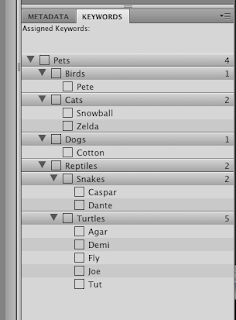
Notice in the expanded list below that the items are alphabetized. The category "Birds" comes first, etc.

Notes:
• When importing keywords, you will not overwrite the existing keywords that you already have in Bridge
• If you import a set of keywords, modify the text file and re-upload, it will only add new keywords. It will not overwrite, even if you're uploading the same-named text file.
• To Delete keywords you must drag the keyword to the trashcan icon within Bridge. Or select the keyword and click the trashcan icon.